
Instagram 2FA: How to Get Your Login Code

When the code screen appears
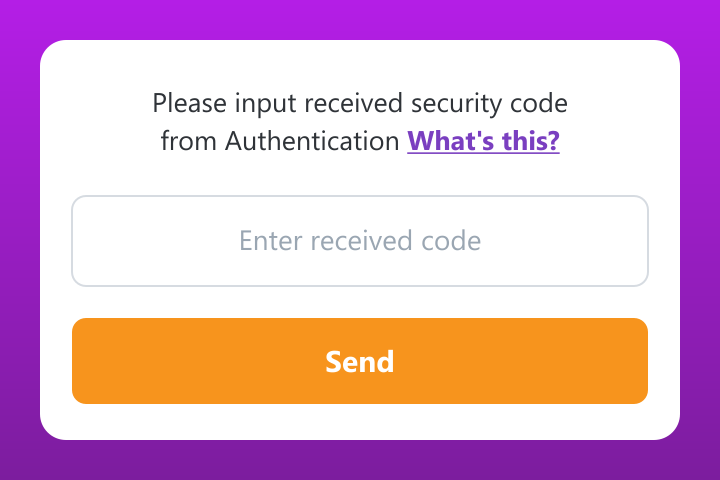
The screen has one field for the code and a Send button. You do not invent the code, you read it from one of the sources below. Pick the method that matches how the account is set up.
Method 1: Authenticator app
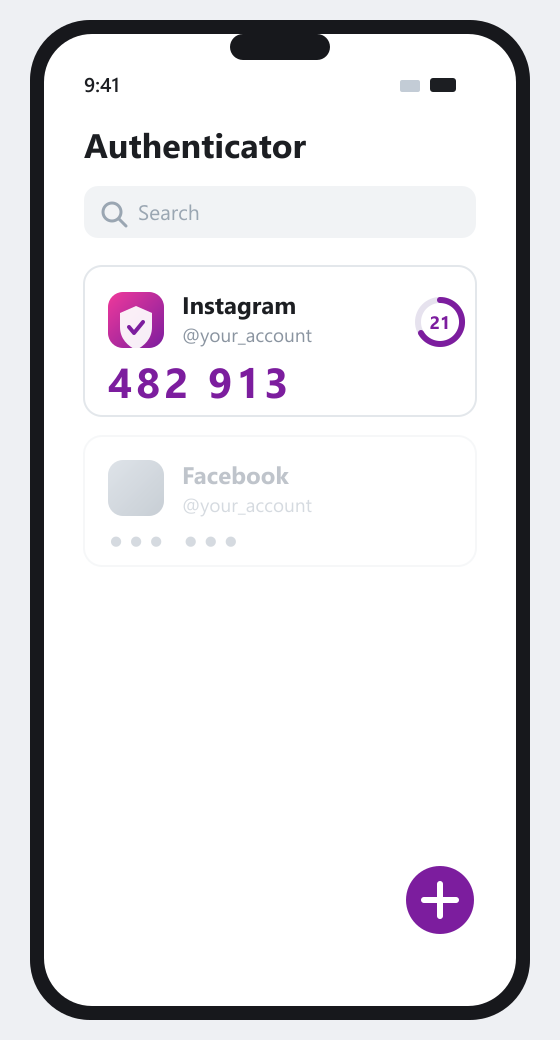
An authenticator app makes the 6 digit code on your phone. It works offline, does not need SMS, and does not depend on your mobile signal. Any authenticator app will do, they all make the same kind of code.
Open the authenticator and read the code
If the account is already added to your authenticator, this is all you do:
1. Open your authenticator app.
2. Find the entry for your Instagram account.
3. Read the current 6 digit code under it.
4. Type it into the field on the code screen and tap Send.
The code changes every 30 seconds. If the timer is almost out, wait for the next one.
If you do not have an authenticator yet
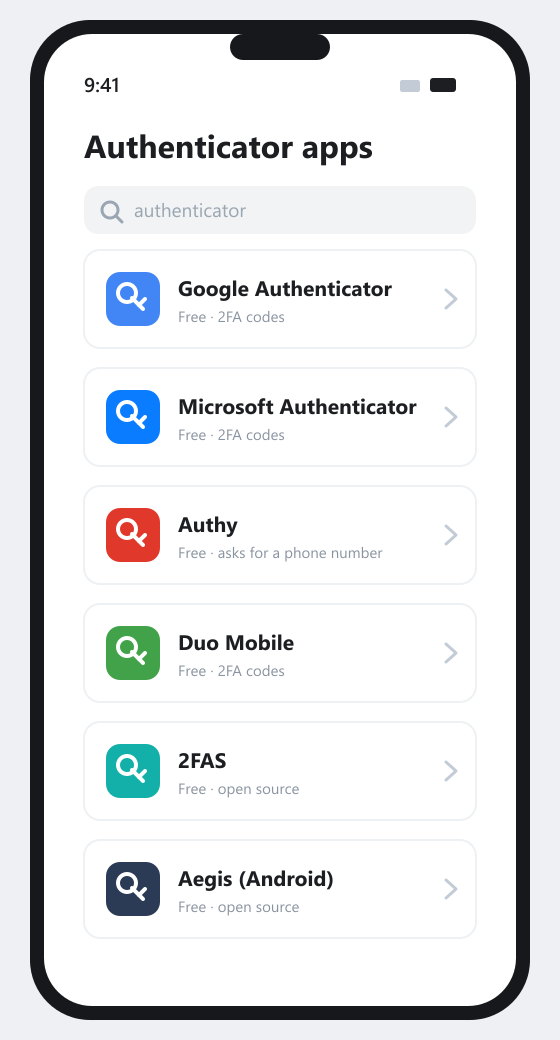
Install any one of these, then set it up (next part). Install from the store, all of them make the same kind of code.
- Google Authenticator - Google Play and App Store.
- Microsoft Authenticator - Google Play and App Store.
- Authy - Google Play and App Store. Asks for a phone number when you install it.
- Duo Mobile - Google Play and App Store.
- 2FAS - Google Play and App Store.
- Aegis (Android only) - Google Play or F-Droid.
Set it up and add your account
If you own the account, turn it on once inside the official Instagram app, then add it to the authenticator:
1. Open Instagram, go to your profile, open the menu, then Settings and activity, then Accounts Centre, then Password and security.
2. Tap Two factor authentication, choose the account, choose Authentication app.
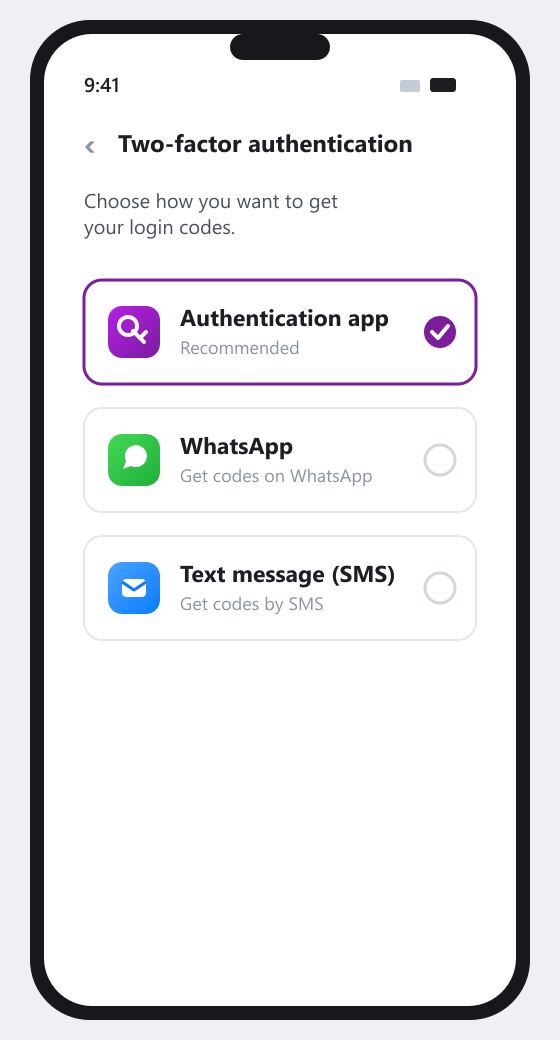
3. Instagram shows a setup key or a QR code.
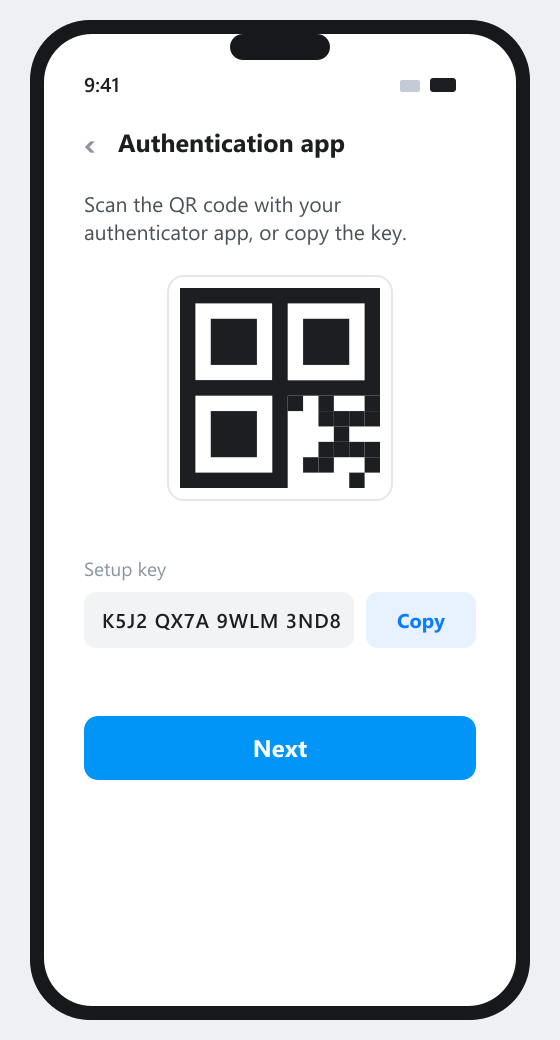
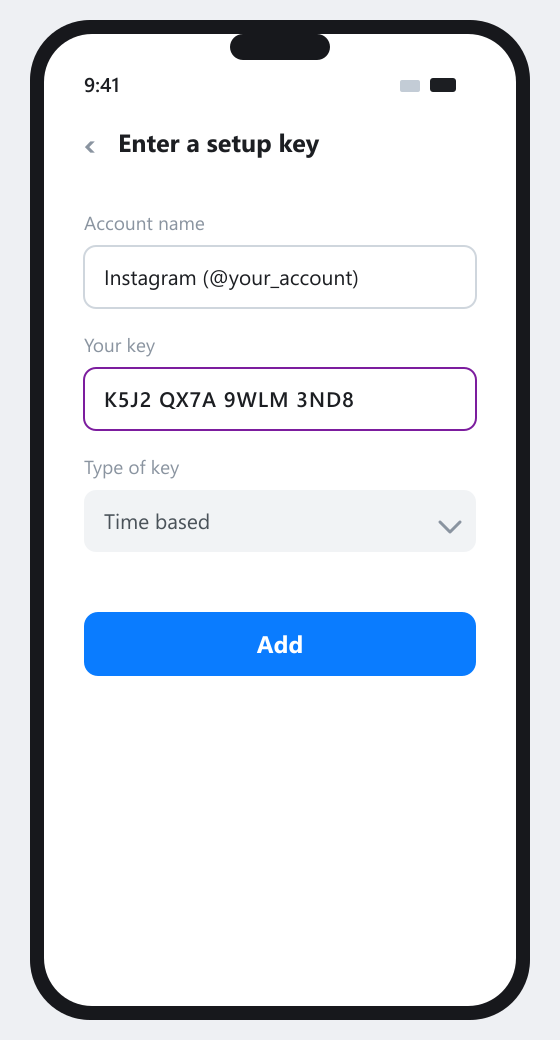
4. In your authenticator tap the plus button, choose Enter a setup key (or Scan a QR code), add it, and save.
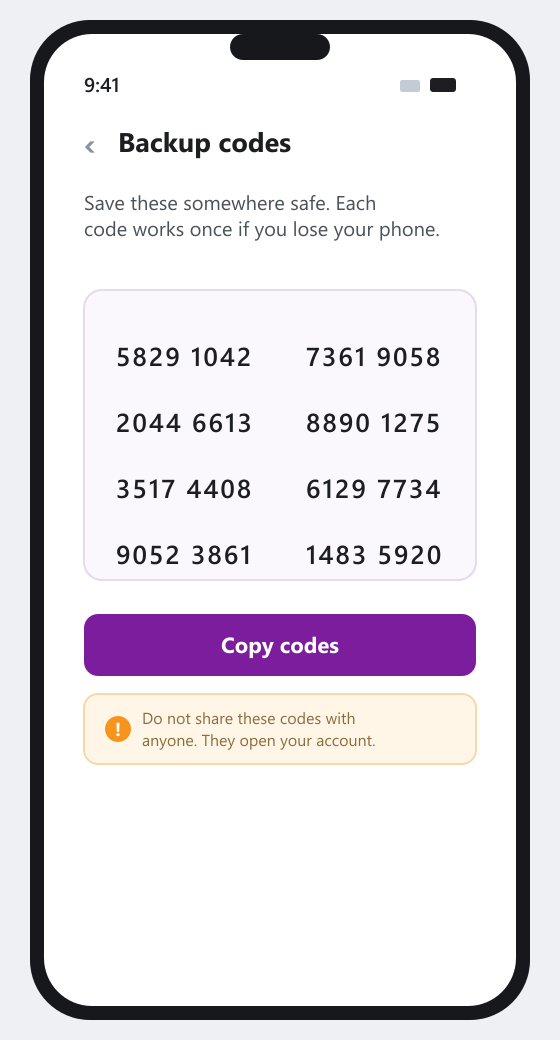
5. Enter the current 6 digit code back in Instagram to confirm, and save the backup codes it gives you.
If you bought the account, the setup key already comes with it:
1. The account details usually look like username:password:key. The last part, a group of letters and numbers, is the setup key. Many people do not realise it.
2. In your authenticator tap the plus button, choose Enter a setup key, paste it, and save.
3. The app now shows a 6 digit code for this account.
After this, your authenticator always shows a fresh code for the account. Use it on the code screen (see Open the authenticator and read the code above).
Method 2: WhatsApp code
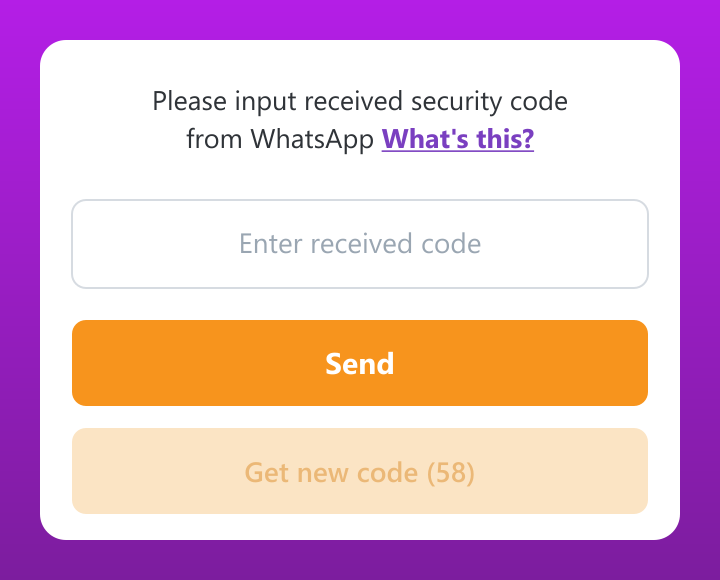
Instagram can send the 6 digit code as a WhatsApp message, which is handy where SMS is unreliable.
1. On the code screen, choose WhatsApp as the method.
2. Open WhatsApp and find the message from Instagram with the code.
3. Enter the code and tap Send.
Important:
- You need WhatsApp installed on the same number that is linked to the account.
- This needs access to that number, so for bought accounts it usually does not work.
- The code is one time and comes as a normal chat message, look for the Instagram chat.
Method 3: SMS code
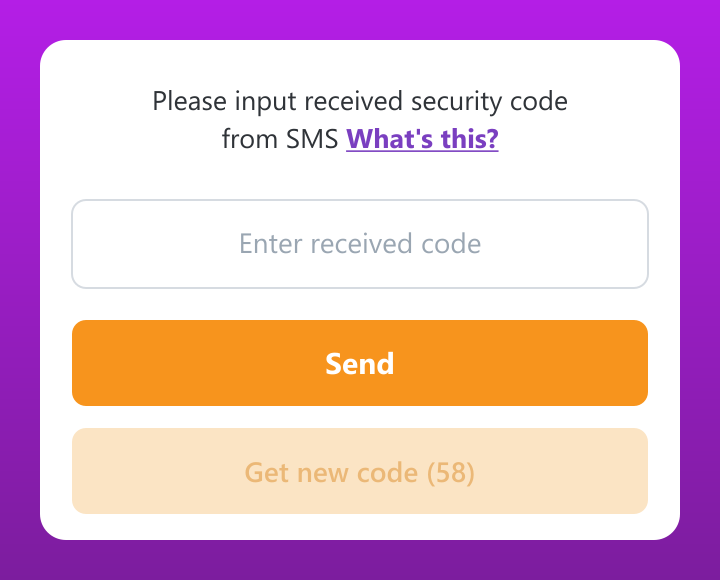
Instagram sends the 6 digit code as a text message to the phone number on the account.
1. On the code screen, choose SMS as the method.
2. Wait for the text message from Instagram.
3. Enter the code and tap Send. If nothing arrives, use Send code again.
Important:
- You need the SIM card with that phone number in hand. No number, no SMS.
- The code arrives with a short delay and expires after a while, so use it quickly.
- For bought accounts SMS usually does not work, because the number is not yours. Use the authenticator setup key instead (Method 1).
If the code does not work
- Wrong code every time: it is a timing issue. Use a fresh code and set your phone clock to automatic.
- No account shown in the authenticator: it is not linked yet. Add it with the setup key, as above.
- SMS or WhatsApp code never arrives: you do not have access to that number. Use the authenticator setup key instead.