
Wrong Password in TopFollow: Why It Happens and What to Do

Wrong Password in TopFollow: Why It Happens and What to Do
You type the password, you are sure it is right, and the app says it is wrong. This is the most common login problem, and most of the time the password really is correct. Instagram uses "wrong password" as a catch all: it says it when the password is wrong, and also when it simply does not trust this login yet.
Here is what to do, in the order that solves it fastest.
Do this first: try the password in the official Instagram app
This one test tells you everything. Open the official Instagram app and sign in with the same username and password.
- It works in Instagram but not in TopFollow. The password is fine. Instagram just wants to confirm the login. See "The code from the email" below.
- It does not work in Instagram either. The password really has changed. See "Reset the password" below.
Before you decide it failed, tap the eye icon and check what you actually typed. A trailing space from a copied password, autofill, or the wrong keyboard layout are the usual culprits, and they cost nothing to rule out.
The code from the email
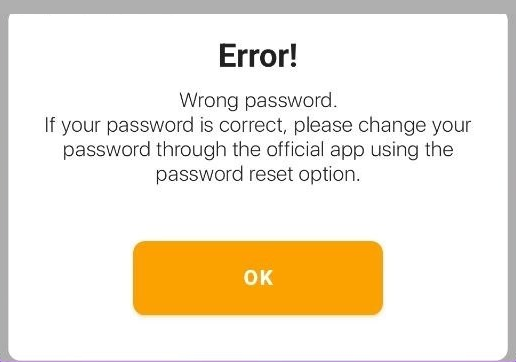
When the password is correct but Instagram wants a check, it sends a code to the email on the account and TopFollow shows this screen. It says: Enter the code from the password recovery email to continue logging in. Your password will not be changed.
That last line is the point. You are not resetting anything. The code only confirms it is you, then the login continues.
- Open the email box linked to the account.
- Find the new message from Instagram. It arrives within a minute. Check Spam and Promotions if it is not in the inbox.
- Copy the code, enter it on the screen, tap Ok.
Sometimes Instagram asks for one more check right after: another email code, an SMS, or a two factor code. That is normal, it is going through its checks one at a time. For the two factor step, see how to get the Instagram 2FA code.
Reset the password
If the password does not work in the official Instagram app either, it has been changed, and the only way in is a reset. The same applies if the email code never arrives, because that means you cannot reach the email on the account.
- Open the official Instagram app.
- On the login screen tap Forgot password.
- Reset the password through whatever method Instagram offers.
- Come back to TopFollow and sign in with the new password.
TopFollow cannot reset an Instagram password and cannot see your old one, so this step always happens in the official app. After a reset Instagram often logs out other sessions, so signing in to TopFollow again is expected.
A red account in the list
TopFollow signs back in to your account from time to time while it works. If during that Instagram asks for the recovery code, the app cannot enter it for you, so it marks the account red and pauses it.
Tap Accounts at the bottom, open the red one, sign in again, and enter the code from the email when the screen appears. The account goes back to normal once the login goes through.
Bought accounts
If you got the account from someone else, "wrong password" usually means one of these:
- The seller changed the password. Test it in the official Instagram app first.
- The recovery email is not yours, so the code goes somewhere you cannot open. If the account came with email access, look for the code there.
- The account came with a two factor key (details like username:password:key). The last part is the setup key, and this guide explains how to use it.
Change the password and the email to your own through the official Instagram app as soon as you can. Until you do, the previous owner can take the account back.
If the loading spinner never stops
If you enter the code and the screen keeps loading, go Back, close the app fully, and try once more. If it hangs again, stop: repeated attempts make Instagram stricter. Reset the password through the official app instead, and tell us your phone and app version through the contact page so we can fix it faster.
Check where you installed the app
If TopFollow did not come from topfollow.app, check that. Copies of the app spread under our name with a login screen identical to the real one. If you typed your password into a copy, change your Instagram password now. The real app comes only from topfollow.app, so check the address bar before you install anything.
Once you are in, the how to use page explains what each tab does.